Depending on your warehouse configuration, Pick Ticket documents may be necessary to transfer inventory from picking bins to the Ship bin before processing shipments.
Bypass the Ship Bin
To bypass the Pick Ticket requirement:
-
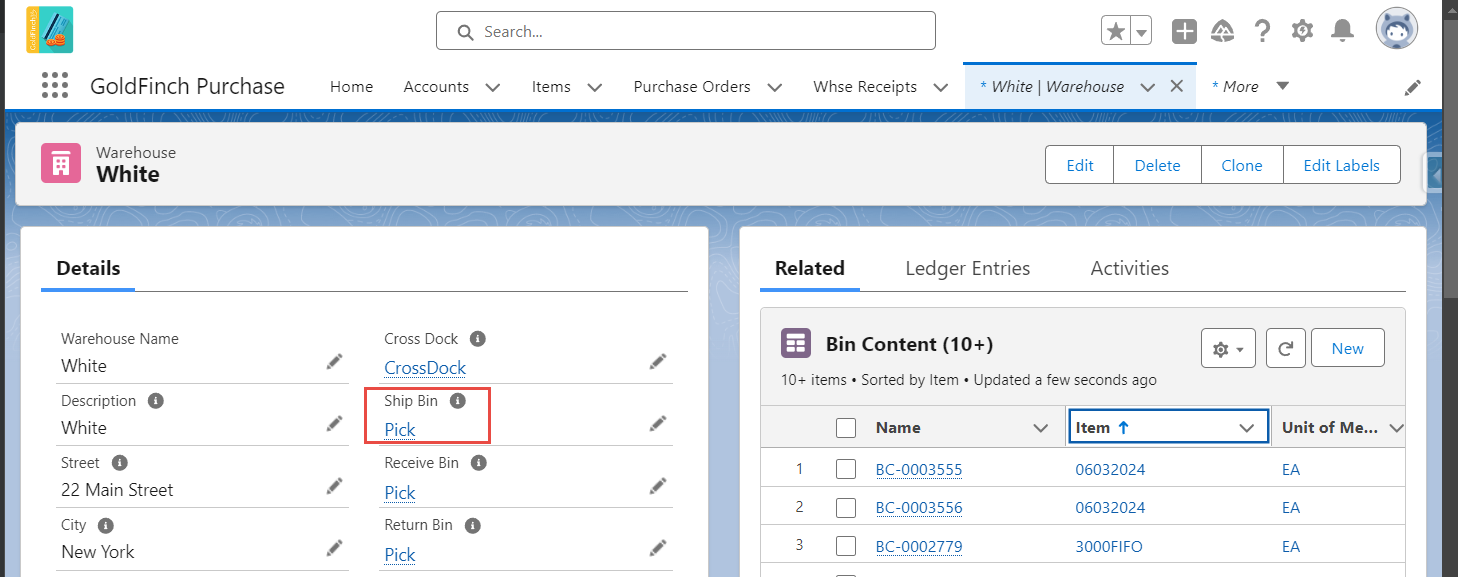
Set a bin with the "Pick" Bin Type as the Ship Bin in the Warehouse settings.
-
Check the "Bypass Pick for Shipment" option. With this setup, a Pick Ticket will not be required.
-
Optionally, enable the "Populate Lots when Create Shipment" setting to automatically assign Lot Numbers to Warehouse Shipments. If not enabled, Lot Numbers can still be manually added before posting the shipment.
 Using a Ship Bin
To configure a Ship Bin:
-
Set up the bin with the QC Bin Type. This designation restricts the inventory in these bins to shipping use only.
-
Avoid moving inventory into or out of the Ship Bin to maintain accuracy.
Creating a Pick Ticket
To create a Pick Ticket for shipping:
-
Navigate to the Warehouse Shipment and select "Create Pick".
-
On the confirmation page, review the inventory availability, then click "Create Pick".
The system will use the "Lot Pick Option" field on the item to determine which bins to pick from:
-
FEFO (First Expiration First Out): Uses expiration dates for lot-tracked items.
-
FIFO (First In First Out): Uses the posting date of transactions.
-
Bin Ranking: Suggests higher-ranked bins first.
Click "Print Instructions" for pick ticket details.
Before posting, edit the pick ticket if needed to update the From Bin or split pick lines.
Click Post to finalize the Pick Ticket.
Comments
0 comments
Please sign in to leave a comment.